To set up an eSIM, open the activation email on the phone you want to use and tap Install eSIM, or find the same install options in your account under More > Line settings > SIM. To set up a physical SIM, insert the card and enter the activation code from the packaging at parrotmobile.com/activate.
Not sure which one to use? See Physical SIM vs eSIM: What's the Difference?
Set up an eSIM
Your eSIM is always available in two places:
- Your activation email. When your eSIM is ready we email you a one-tap Install eSIM link and a QR code. The link opens an install page that works without signing in.
- Your account. Sign in at app.parrotmobile.com, pick the line from the line switcher at the top, then open More > Line settings > SIM. (More is in the top bar on a computer and in the bottom bar on a phone.)
The install screen has three tabs: iPhone, Android, and QR code. Pick the one that matches how you want to install.
One-tap install (fastest)
- Open the email or the SIM page on the phone you want to use.
- Choose the iPhone or Android tab and tap Install eSIM.
- Confirm the prompt from your phone's settings. One-tap install needs iOS 17.4 or newer, or Android 9 or newer with eSIM support.
Scan the QR code
- Open the QR code tab on a second screen, such as a computer or another phone.
- On the phone you are setting up, open the camera and point it at the code. Most phones offer a "Set up cellular plan" or "Add eSIM" link as soon as the code is recognized.
- If the camera does not offer a link, go to Settings > Cellular > Add eSIM > Use QR Code on iPhone, or Settings > Network & Internet > SIMs > Add SIM > Download a SIM instead on Android (menu names vary by manufacturer).
Manual setup
- Open Advanced / manual setup on the install screen.
- Copy the SM-DP+ address and Activation code.
- On your phone, go to Settings > Cellular (or Mobile data) > Add eSIM > Enter details manually and paste the values.
Stay on Wi-Fi while installing
Installing an eSIM downloads a profile, so keep a stable Wi-Fi connection until it finishes. An eSIM can only be installed once, so install it on the phone you plan to keep it on.
Don't delete your eSIM
Deleting the eSIM from your phone is permanent and the same QR code cannot be installed again. If that happens, order a replacement eSIM. See Replacing Your SIM or eSIM.
Didn't get your eSIM QR code, or the install option is gone
- Check your email. Search your inbox, spam, and promotions folders for "eSIM" from Parrot Mobile.
- Check your account. Go to More > Line settings > SIM. If you see "Your eSIM is being prepared", we are still creating it. It will appear there and we will email it as soon as it is ready.
- If the install option is no longer shown. The install option is only shown until the eSIM is installed, and for up to 3 days after the line activates. After that, the SIM page only shows your SIM details.
- Get a fresh eSIM. If you never installed it, deleted it, or the install option has expired, go to More > Line settings > SIM > Replace SIM, tap Start replacement, and choose Replace with eSIM. An eSIM replacement costs $3.00 and can be ordered once every 24 hours. We email the new QR code right away.
Set up a physical SIM
Physical SIM kits come with a 3-in-1 SIM (Nano, Micro, and Standard sizes) that fits most phones. Kits are sold on Amazon; see our SIM Card Kit page. At checkout, choose Physical SIM Card, then I have a SIM card to enter your activation code, or I need a SIM kit to order one.
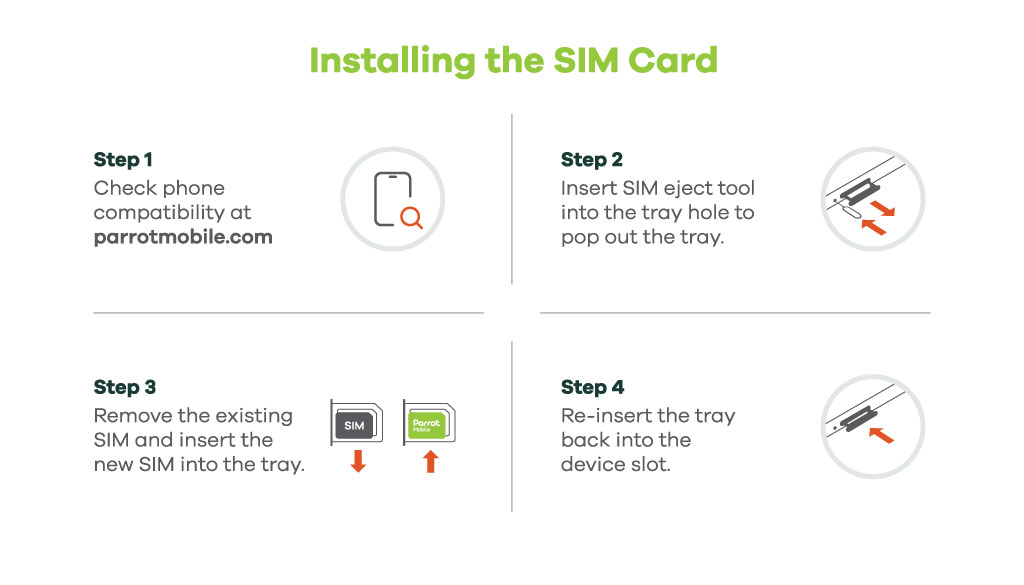
- Pop out the SIM size that fits your phone and insert it with the phone powered off.
- Turn the phone back on.
- Go to parrotmobile.com/activate and enter the activation code printed on your SIM packaging.
- Follow the on-screen steps to choose your plan and number.
After setup
Give the network up to 30 minutes to finish connecting your line. If you still have no service, work through Activating Your Service (and What to Do If It Doesn't Work). If data or picture messages don't work, check APN Settings for Android and iPhone.
Related articles
- Activating Your Service (and What to Do If It Doesn't Work)
- Replacing Your SIM or eSIM
- Switching Phones - Moving Your SIM or eSIM to a New Device
- Supported Devices & Compatibility
Was this article helpful?
That’s Great!
Thank you for your feedback
Sorry! We couldn't be helpful
Thank you for your feedback
Feedback sent
We appreciate your effort and will try to fix the article